Linux is still a great desktop option
The Linux desktop operating system is still a good choice for a desktop operating system after all these years. Even though the desktop has changed a bit since the first Linux distribution I ever used; Red Hat Linux 6.2; this is still a good choice for a person that wants an alternative to Windows. If you wish to install something like Linux Mint beside Windows 7 it is a simple solution to re-size the Windows partition to make room for the Linux partitions and then create a partition to fit the Linux Mint installation and then a partition for the /swap that is equal in size to your RAM. Therefore if you have 6 Gigabytes of RAM; make the partition that big to make sure that you have enough swap space for your operating system. Once the Linux Mint distribution is installed; you will have a boot menu that allows you to boot either Windows or Linux Mint. This is similar to installing Windows Vista on a machine that already has Windows XP on another partition; you will have a boot menu that enables you to choose Windows Vista or Windows XP. Linux Mint is the next progression of the already popular Ubuntu distribution.
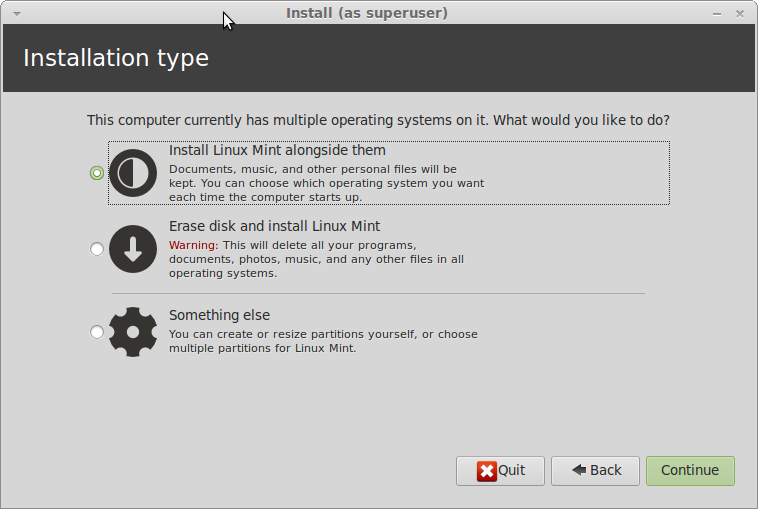
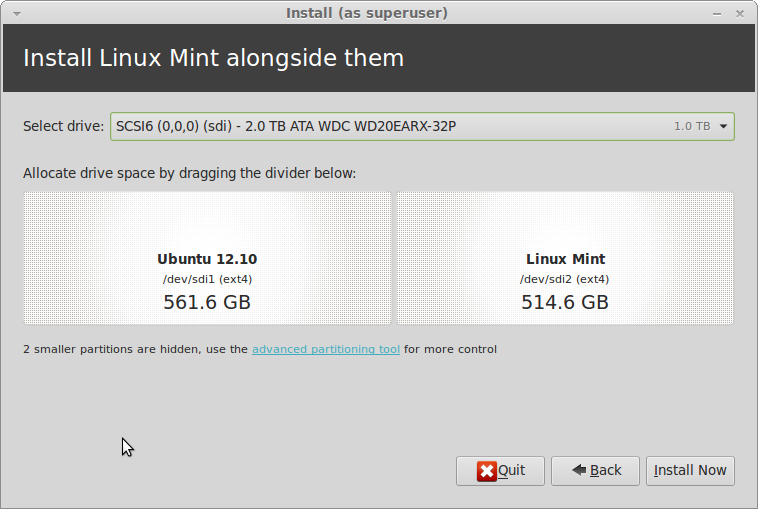
The MATE desktop has been kept for this new release as well as all the other familiar software that all Linux users enjoy in this distribution. The Linux distributions of the past were fun to use; but maybe not as easy to install as the Linux distributions that we are enjoying today. Editing and creating partitions use to be done with cfdisk and now we have GUI tools to perform the same task. Below is the cfdisk program in action. This is what we used to use when partitioning a hard disk to install Linux. It is still very usable; more so than the Linux fdisk command; but it is not as much fun as Gparted. But as you can see in the two screenshots above; it is easy to re-size a Windows partition to install Linux alongside the existing Windows partition; you just need to shrink the existing partition and then create a new partition in the free space thus created.
cfdisk (util-linux 2.20.1) Disk Drive: /dev/sda Size: 500107862016 bytes, 500.1 GB Heads: 255 Sectors per Track: 63 Cylinders: 60801 Name Flags Part Type FS Type [Label] Size (MB) ------------------------------------------------------------------------------------------------------------------------------------------------------------------ Primary Free Space 1.05 * sda1 Boot Primary ntfs 227918.48 * Primary Free Space 2768.25 * sda2 Primary ext4 34603.01 * Pri/Log Free Space 76.55 * sda5 NC Logical ext4 234740.52 * Pri/Log Free Space 0.03 * [ Help ] [ New ] [ Print ] [ Quit ] [ Units ] [ Write ] Create new partition from free space |
Below is what the fdisk command looks like when you execute it. This is not very user-friendly and it is a good idea to read the manual pages thoroughly before you attempt to use this utility.
[Mon 12/12/03 19:38 EST][pts/0][x86_64/linux-gnu/3.5.0-17-generic][5.0.0] zsh 5 % sudo fdisk /dev/sda Command (m for help): m Command action a toggle a bootable flag b edit bsd disklabel c toggle the DOS compatibility flag d delete a partition l list known partition types m print this menu n add a new partition o create a new empty DOS partition table p print the partition table q quit without saving changes s create a new empty Sun disklabel t change a partition's system id u change display/entry units v verify the partition table w write table to disk and exit x extra functionality (experts only) Command (m for help): |
The Linux fdisk command does not have a nicer interface like the DOS equivalent does, but it is a good utility once you learn how to use it properly. But cfdisk is a better choice if you are at a command-line only computer and you want to perform some disk partitioning in a hurry. The Linux Documentation Project has a nice tutorial here: http://tldp.org/HOWTO/Partition/fdisk_partitioning.html This explains how to perform partitioning with the fdisk utility. The manual page for the cfdisk command may be read here: https://linux.die.net/man/8/cfdisk. The Linux distributions we use today are so much easier to install than they ever were before. Below is a look at the Red Hat Linux 6.2 distribution; this is the first Linux I ever installed, but I was using Gnome instead of KDE.
useful information thank you