------------------------------------------------------
My new Linux forums.
------------------------------------------------------

Translate this web page.

.
About me.


Contact me.


The SEO King
Free Web Directory - Add Your Link
The Little Web Directory
Begin Linux.
Doom WIKI.
slacklinux.darkbb.com/
xorl.wordpress.com/.
linuxaleph.blogspot.com/.
Doom64 for PC.
kernel.org/.
atomicmpc.com.au.
chrisbrogan.com.
Keep the Internet free.
Download: Fast, Fun, Awesome

Install Gnome 3 plugins.

Gnome 3 Live!

Linux user & Developer magazine.

Linux TV Wiki.

The Linux Documentation project.

The GNU Homepage.

Bloggers' Rights at EFF
Join the Blue Ribbon Online Free Speech Campaign

Join the Blue Ribbon Online Free Speech Campaign!

My old Doom Screenshots.

Doom Shots.

Some pictures related to 9/11.

September 11.

Slashdot.

Thinkgeek.

*|--------------------------------------------------------------------------------------------------------------------------------------------------------------------------------------------|*

http://www.sitepromotiondirectory.com/computers_and_internet/search_engine_optimization/

My Linux PDF files. -- Old site content.

*|--------------------------------------------------------------------------------------------------------------------------------------------------------------------------------------------|*

Installing printers with the CUPS web interface in Debian Linux.

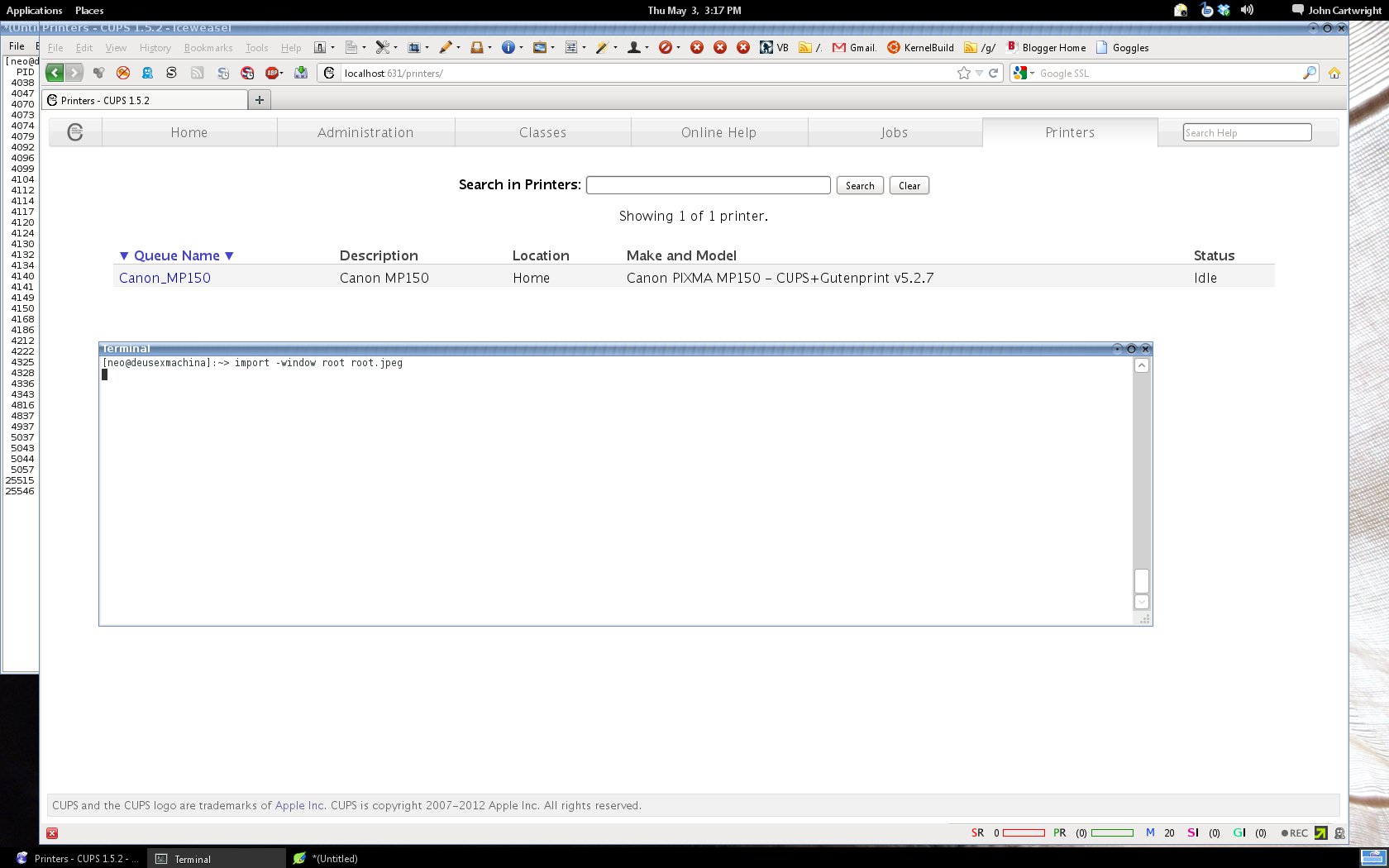
Viewing installed printers in the CUPS administration page.

Viewing installed printers in the CUPS administration page.

I recently had to add a printer to my Debian System and the System Settings -> printers dialog in the Gnome 3 System Settings application would not detect my Canon MP150 printer. Therefore, I started the CUPS interface by visiting: http://localhost:631 in my web browser and I was then able to add my printer. This interface will ask for a username and password before you can go ahead, the username is “root” and the password is your root password. Then click the add printer button and you may select your printer and add it to the system. Using the CUPS interface to view your installed printers as shown in the screenshot to the left, this offers printer administration and maintenance. If you click the name of your installed printer, it will take you to a page where you may print a test page or do other maintenance tasks.
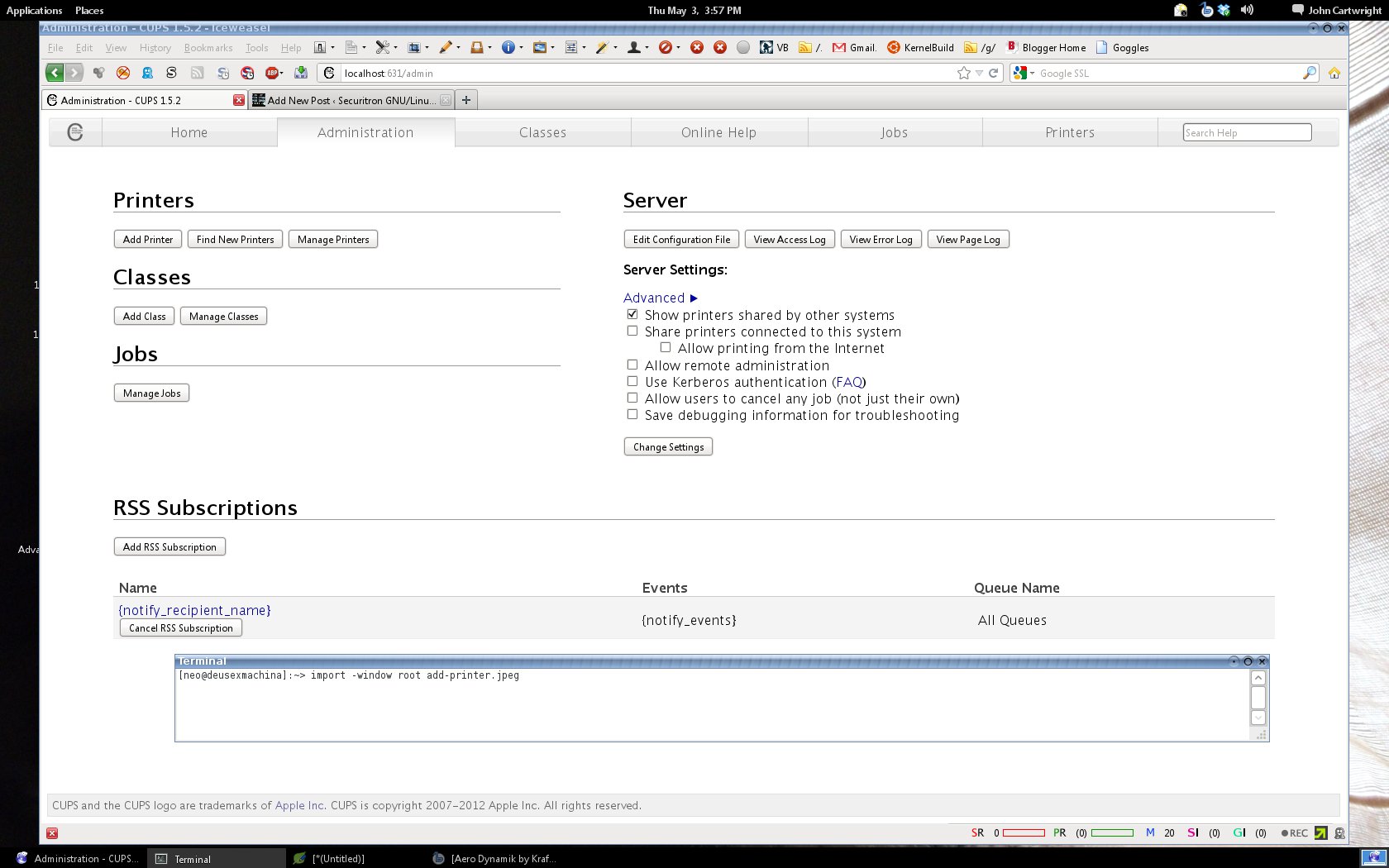
Adding a printer with the CUPS interface.

Adding a printer with the CUPS interface.

This goes to show that the traditional Linux administration tools are better than the new control panels they are adding to the Linux desktop. If the Gnome 3 System Settings -> Printers dialog will not even detect my printer, what use is it? If you are wondering what version of Iceweasel I am using, it is Iceweasel 13.0 available in the Debian Experimental repositories. Ubuntu and Linux Mint would have the CUPS interface available as well. Give it a try if you are wanting to install a printer with a Linux distribution.

Leave a Reply